Streaming your gaming content has become more accessible than ever, but achieving professional-quality broadcasts requires the right setup. A dual PC and Xbox streaming configuration is the gold standard for serious content creators who want to deliver smooth, high-quality streams without compromising gaming performance. This comprehensive guide will walk you through everything you need to know to build your ultimate streaming setup.
● Dual PC Streaming Advantage
Before diving into the technical details, it’s important to understand why streamers opt for a dual PC setup. When you stream from a single computer, your CPU and GPU must handle both gaming and encoding simultaneously. This split workload can lead to dropped frames, reduced game performance, and lower stream quality. By dedicating one PC to gaming and another to streaming, you maximize performance on both fronts, ensuring your viewers get crystal-clear footage while you maintain competitive frame rates.
● Essential Hardware Components
Your gaming PC should prioritize raw performance. A high-end processor like an Intel Core i7 or AMD Ryzen 7, paired with a powerful graphics card such as an NVIDIA RTX 4070 or higher, will handle modern games at high settings. Aim for at least 16GB of RAM, though 32GB provides more headroom for memory-intensive titles.
The streaming PC doesn’t need to match your gaming rig’s power, but it should have a capable CPU for encoding. An Intel Core i5 or AMD Ryzen 5 processor with a dedicated GPU for hardware encoding works well. 16GB of RAM is sufficient, and you’ll want reliable storage for recording streams locally.
For Xbox integration, you’ll need an Xbox Series X or Series S console, along with a capture card that supports the resolution and frame rate you want to stream. The Elgato HD60 X and AVerMedia Live Gamer 4K are excellent choices that handle 4K passthrough and 1080p or 1440p capture.
● Connect Your Equipment
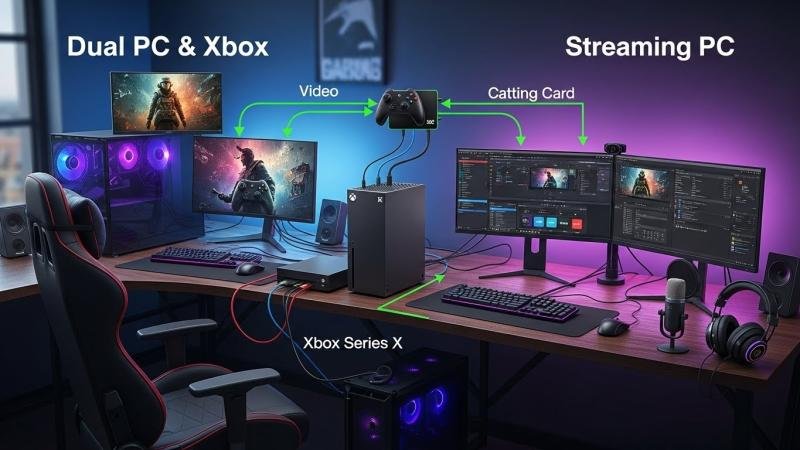
The capture card serves as the bridge between your devices. Connect your Xbox’s HDMI output to the capture card’s input, then run another HDMI cable from the capture card’s output to your monitor. This passthrough configuration lets you game with zero latency while the capture card sends footage to your streaming PC.
Connect the capture card to your streaming PC via USB 3.0 or PCIe, depending on your model. Internal PCIe capture cards typically offer better performance and lower latency, while external USB models provide flexibility and easier setup.
Your gaming PC connects to the streaming PC through a capture card as well. Use the same HDMI passthrough method, connecting your gaming PC’s output to a second capture card input, then to a monitor. Some streamers use a single monitor for gaming and a second for managing the stream, while others prefer separate displays for each system.
● Audio Configuration
Audio routing can be tricky in a dual PC setup. You’ll want game audio, your microphone, Discord or party chat, and any additional sources to mix properly. An audio interface or mixer like the GoXLR or Behringer Xenyx helps manage multiple audio sources. Connect your microphone to the streaming PC, and use the mixer to blend game audio from the capture card with your voice and any music or alerts.
For Xbox chat audio, you’ll need to capture party chat separately. The Xbox’s audio output can be split using an HDMI audio extractor, sending audio to both your headset and the streaming PC. Alternatively, use the Xbox app on your streaming PC to join party chat, giving you more control over audio levels.
● Software Setup and Configuration
On your streaming PC, install broadcasting software like OBS Studio or Streamlabs OBS. Add your capture card as a video source, then configure your stream settings based on your internet upload speed and target platform’s requirements. For Twitch, 1080p at 60fps with a bitrate of 6000 kbps provides excellent quality.
Create scenes that switch between your Xbox gameplay, PC gameplay, and any overlays or camera feeds. OBS’s scene collection feature lets you save different layouts for various games or content types.
When setting up your gaming identity, having a unique gamertag helps you stand out. If you’re struggling to come up with the perfect Xbox username, check out this Xbox Gamertag Generator (https://aifreeforever.com/tools/xbox-gamertag-generator) for creative inspiration that matches your streaming persona.
● Custom Graphics
Professional-looking streams require more than just gameplay footage. Overlays, alerts, banners, and transitions give your channel personality and polish. Creating custom graphics from scratch can be time-consuming, but AI-powered tools have revolutionized the design process. Browse these AI image generators (https://aifreeforever.com/image-generators) to create unique stream graphics, emotes, and branded content without needing advanced design skills.
● Network Optimization
Streaming requires significant upload bandwidth. Test your internet connection and ensure you have at least 10-15 Mbps upload speed for reliable 1080p streaming. Use a wired Ethernet connection for both PCs and your Xbox to minimize latency and packet loss. Consider upgrading your router to a gaming-focused model with Quality of Service (QoS) features that prioritize streaming traffic.
Visit Also: https://homeaccesscenter.co.uk/
● Testing and Troubleshooting
Before going live, run multiple test streams to identify issues. Check for audio sync problems, dropped frames, and encoding overload. Monitor your streaming PC’s CPU usage, if it consistently exceeds 80%, consider lowering your encoding preset or resolution. Recording locally while streaming provides backup footage and helps diagnose problems.
Setting up a dual PC and Xbox streaming configuration requires investment in equipment and time for configuration, but the results speak for themselves. Your viewers will appreciate the professional quality, and you’ll enjoy gaming at peak performance. Start with the essentials, test thoroughly, and gradually refine your setup based on viewer feedback and your own experience. With dedication and the right tools, you’ll be streaming like a pro in no time
This release was published on openPR.